How to Prevent Excessing Use of Wifi Connections by Windows Update (Windows 10)

How to Prevent Excessive Use of Wifi Connections by Windows Update

Glasswire is a mostly-free bandwidth monitor for Windows PCs. It probably does a few other things too. One of the nasty things Windows will do it start updating the operating system just when you are watching a live show online with very limited data bundles. All of a sudden, Windows decides out of it's great WISDOM, that when you are almost out of bundles in the middle of this crucial show is the best time to start downloading massive updates.

Bad thoughts flash through your mind but you manage to get hold of yourself. Who do you blame anyway? Some anonymous software engineer in Redmond, WA??

The thing is, you need to sort out this mess. There is an easy way of preventing Windows from misusing your bundles via a Wifi link: Set the Wifi link to be metered.  How?

The sequence is illustrated below. It goes like this:
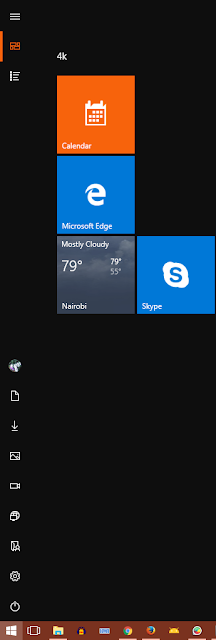
  1. Press the Windows key to get the Start menu (assuming Windows 10)
  2. Click the gear icon to get the Settings menu
    Gear icon
  3. Click the Network icon to get network settings
  4. Click the Wifi menu of the left side panel and Select "Manage Known Networks"
  5. Click of the offensive Wifi network then Select Properties and
  6. Turn on the Metered Connection switch for that network.
Now the pictures:
 1. Windows Key


 2. Start Menu
 

Gear Icon


3. Control Panel


4.  Manage Known Networks


5. Wifi Network Properties


6. Metered Connection Switch


But you still need Windows updates else the ramsonware guys will get you right?

No problem.

Twice a month or so, turn the metered connection to off and make sure you have plenty of bundles then  go to the Control Panel and select "Updates & Security" then  "Download"


Download Button


Now you are relatively safe from the fat guy in the basement cooking up ransomware and other warez.


The Messiah is coming. Make sure you prepare.


Comments

Popular posts from this blog

XUBUNTU PANEL AND WINDOW BUTTONS HAVE DISAPEARED

 XUBUNTU PANELS Xubuntu can be quite troublesome when you shutdown and restart. Desktop panels may disappear as well as window minimize/maximise/close buttons.  The panel is equivalent to the Windows 10 Start menu that provides access to applications. TO MAKE THE PANEL REAPPEAR Open a terminal by right-clicking on the desktop then enter the following: xfwm4 --replace TO RECOVER THE PANEL Open a terminal by right-clicking on the desktop then enter the following: xfCE-panel --restart  That is all . As we say in Kiswahili: Mambo kwisha!

How to Install RIOT Plugin for GIMP

How to Install RIOT Plugin for GIMP::  Since this article was first written a stand-alone version of RIOT has been made available Download the plugin from   http://luci.criosweb.ro/riot/download/   Select the download link titled " RIOT as plug-in for other applications "    Launch the  Riot-plugin.exe  file by double clicking. The installer installs all the files including Riot.exe, Riot.dll, and FreeImage.dll in the location where you installed GIMP  If GIMP is open, close it and re-launch it. To optimise an image, open it then save with menu  File->Save for web with RIOT    You can set the target file size by selecting " Compress to size " button  on bottom right corner of optimised image pane and providing the size in kilobytes. Alternatively you can use a slider provided to allow you to change the quality while showing you a preview of the resulting image. Enjoy .       ...

How to Set Up Youtube for Live Streaming - Part II [Multicamera Live-Streaming Events]

In order to live-stream  with multiple cameras with Youtube live, you need to set up at least one event . Then add cameras to this event. Each camera is associated with a stream . A stream consists of the address of the streaming server and the stream name/key as we saw in setting up smartphones for streaming and setting up Youtube for simple live streaming .  Once the events, streams and cameras are set up, you switch to the Live Control Room from where you can preview the event, monitor the live stream through video and statistics (analytics) and turn off streaming. The Control Room interface includes an indication of stream health - whether the server is receiving data from you encoder and at what speed. The steps involved in setting up for multi-camera streaming are as follows: 1. Sign in to a verified Youtube account . Verification requires that you have observed the rules for Youtube accounts and have not infringed on copyright in the la...